

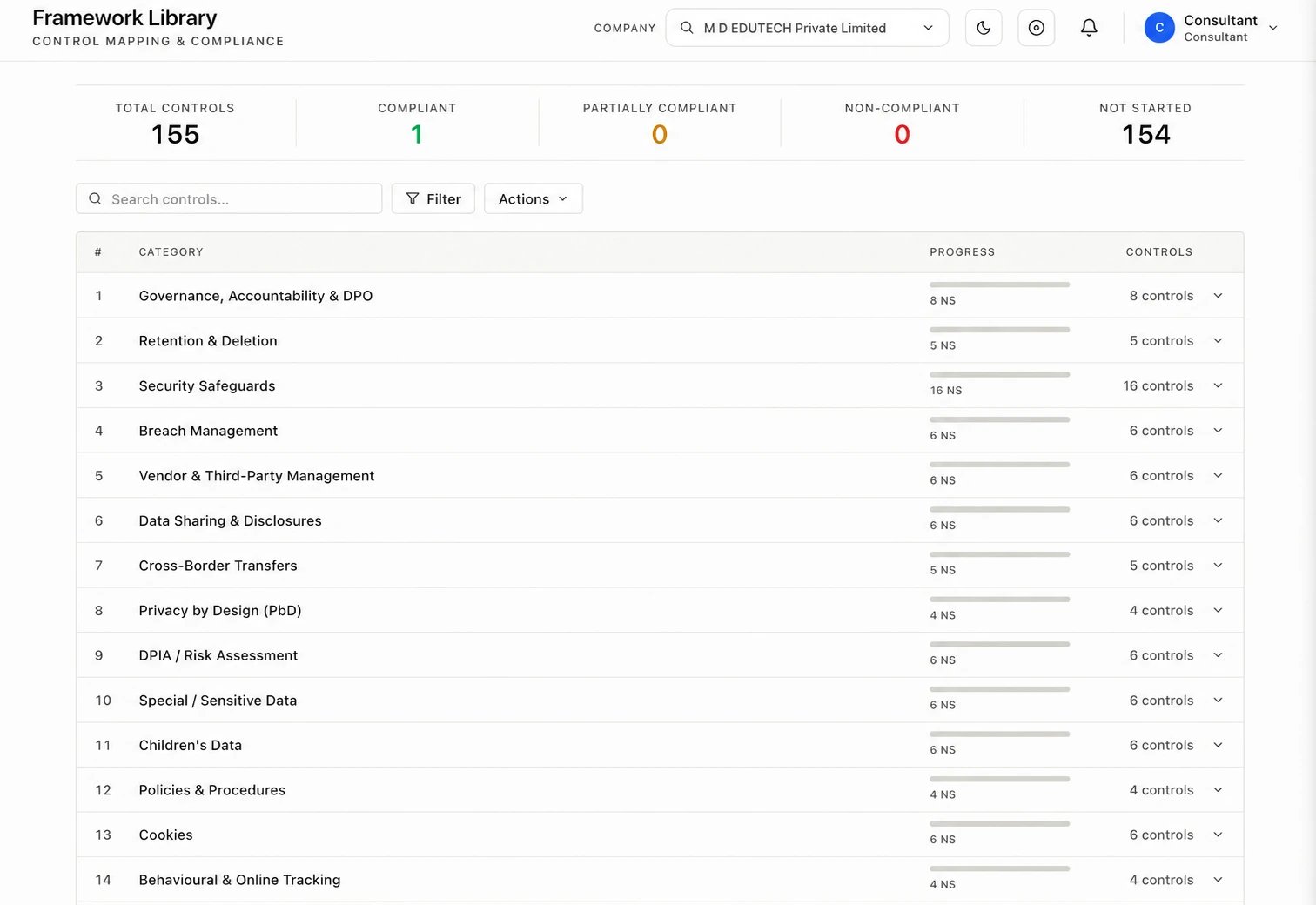
Global Framework metrics and implementation progress
Browse controls
Controls are organized into collapsible domain category cards (for example, Governance & Accountability, Data Subject Rights, Security & Breach Management, Cross-Border Transfers). Click the chevron icon on any card to expand its sub-controls table.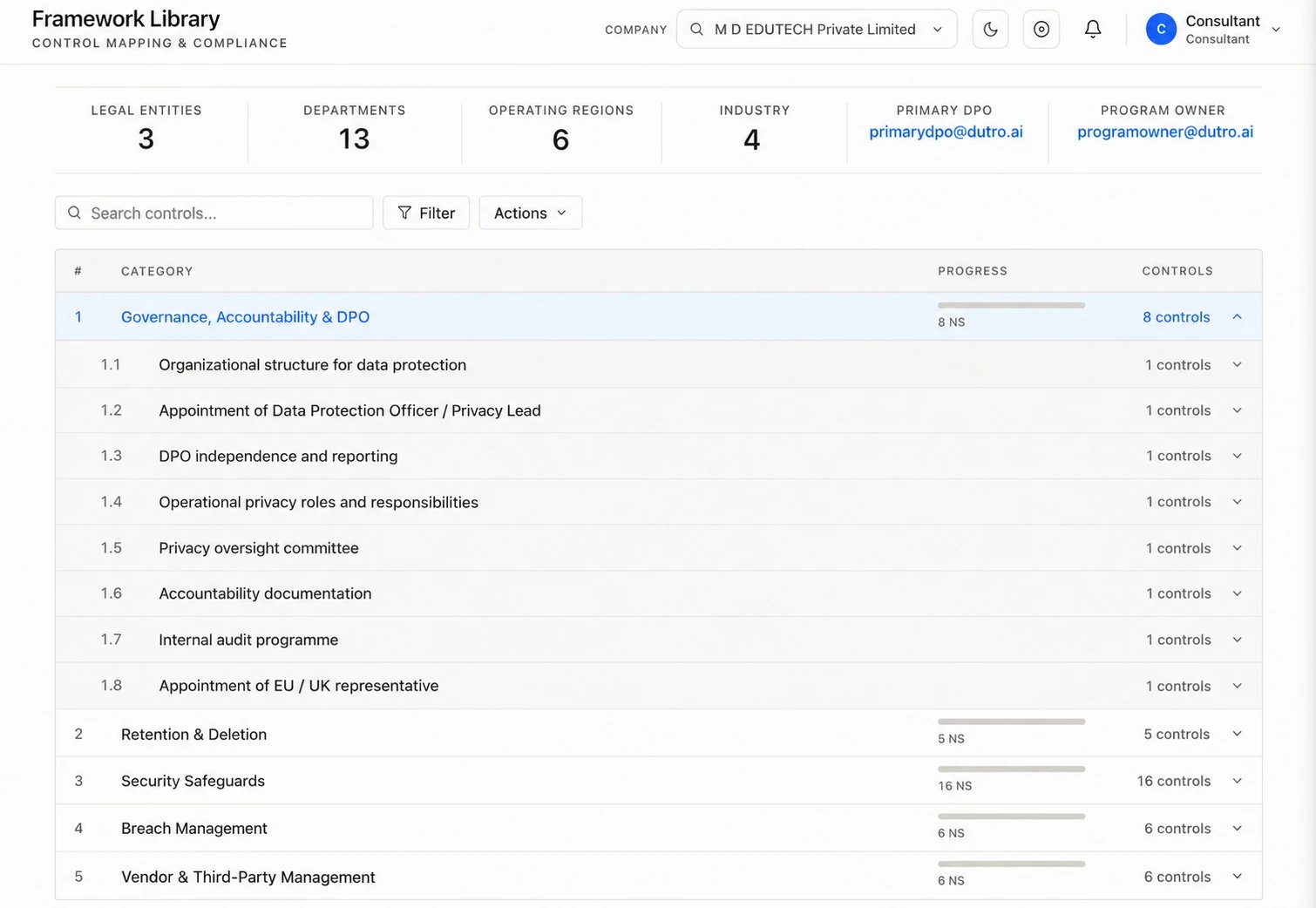
Category cards with progress meters
Framework actions
Click the Actions button to:- Export the global framework in CSV format
- Import controls from your own system
- Import from the Master DB
- Manually add a control
- Wipe out the framework completely
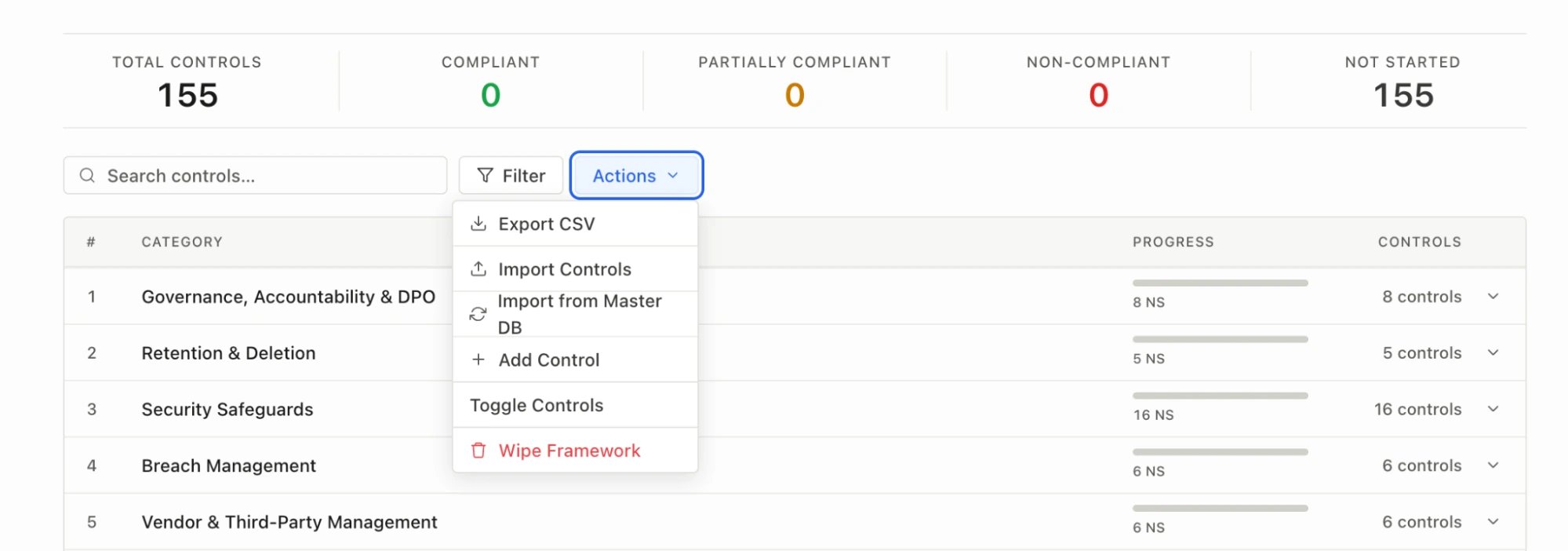
The Actions menu
Control details
Selecting any control opens the Control Details drawer, which outlines the full control specification, regulatory citations (GDPR, CCPA, DPDP), mapped departments, and verified evidence artifacts.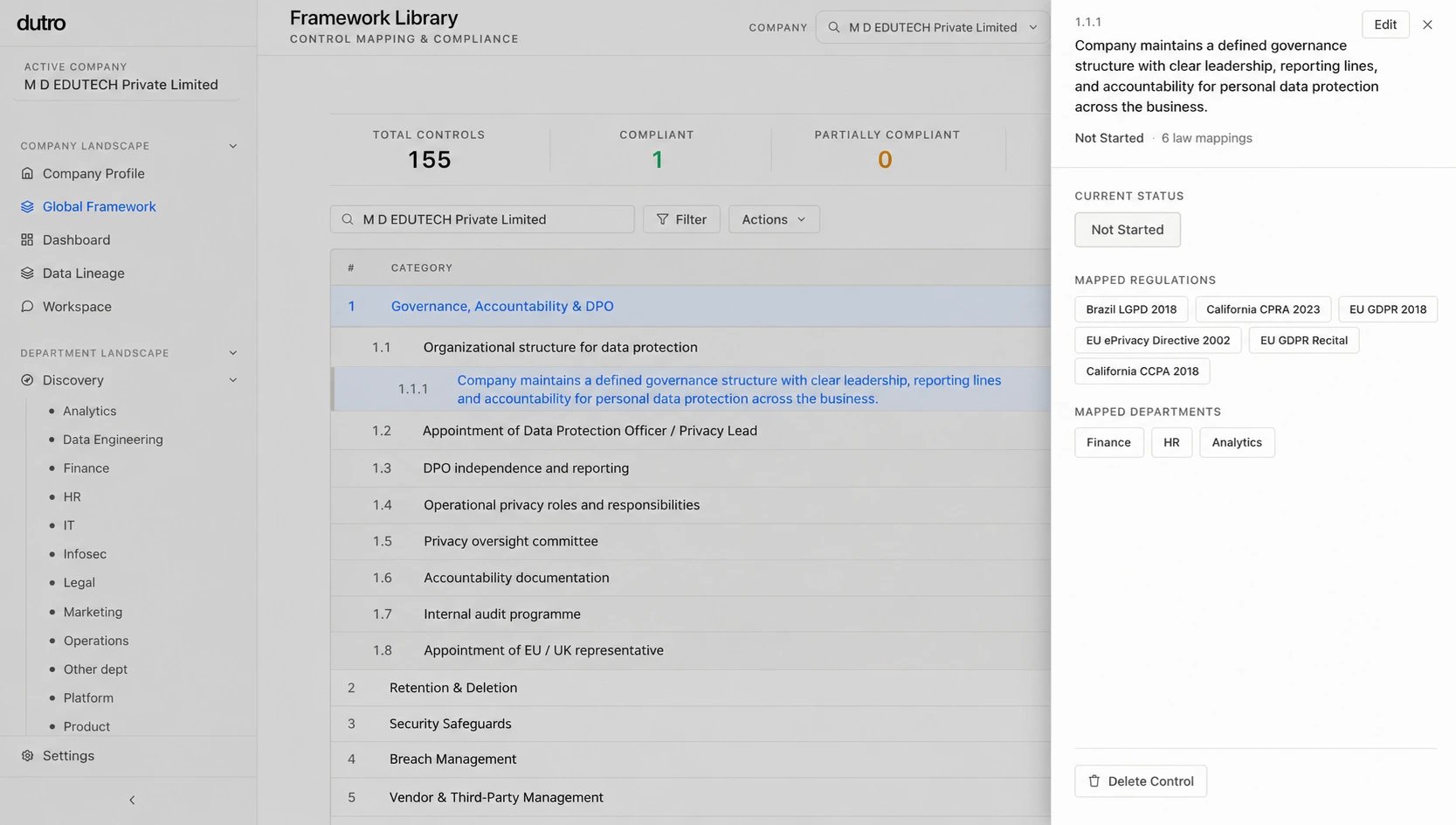
Control Details drawer
Add a custom control
To add custom organizational safeguards, click Add Control under Actions. Specify:- Control ID
- Control Name
- Category
- Description
- Business Requirement
- Mapped Regulations
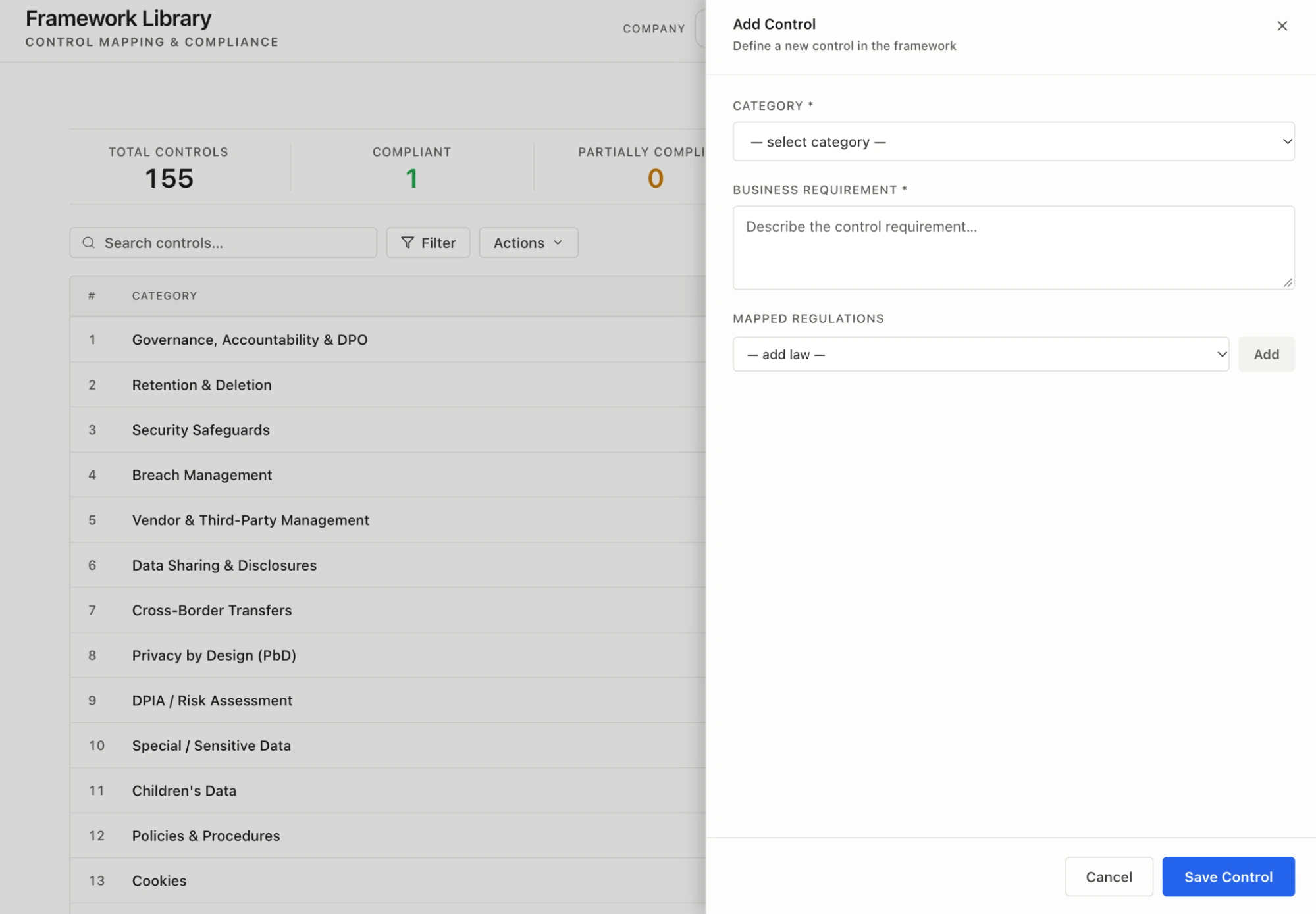
Add Control drawer